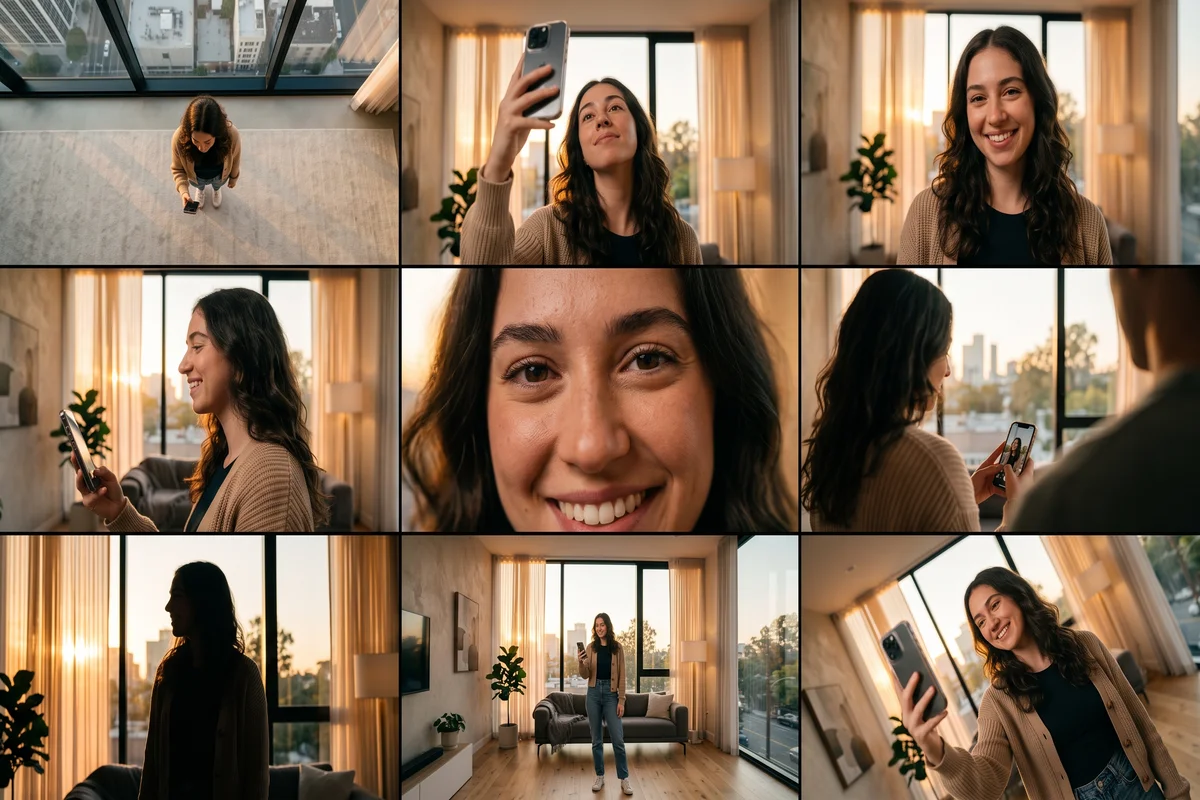
Google Flow just got a lot more fun to use, if you know the right words to type. Google Flow camera commands are short prompt tags that tell the AI exactly how to frame a shot, from a drone view straight down to a tight close-up on your face.
Most people typing into Flow stick to basic prompts like “make a cool photo of me.” That gets generic results. The creators pulling millions of views right now are typing specific camera and drone commands instead, and the difference in output quality is obvious the moment you compare the two.
This guide breaks down all 40 commands, grouped by what they actually do, plus a comparison table so you can find the right one in seconds. Grab a photo of yourself, pick a command below, and start generating.
What Google Flow Camera Commands Actually Do
Camera commands work like a director’s shot list, translated into text. Instead of describing a scene in vague terms, you tell Flow the exact angle, distance, and movement you want.
Think of it as the difference between telling a photographer “take a nice picture” versus “shoot this from a low angle, close up, with a shallow depth of field.” One gets you a random result. The other gets you a specific look.
These commands were first popularized through social media carousels showing them applied to a well known athlete. The same structure works for anyone, including a normal selfie shot in your living room.
Aerial and Angle Commands: From Drone Shots to Ground Level
This first group controls the vertical position of the camera relative to you. These are the commands that turn a flat photo into something that looks like it was shot by a production crew.
✅ Best for: hero shots, profile pictures, anything that needs to feel bigger than a phone selfie ❌ Avoid for: casual, everyday posts where a dramatic angle feels out of place
/DRONEVIEW— High aerial view from above/TOPDOWN— Directly above the subject/BIRDSEYE— Bird’s-eye perspective/OVERHEAD— Camera directly overhead/EXTREMETOPDOWN— Ultra-high aerial view straight down/DRONE3Q— High drone view at an angle/LOWANGLE— Camera looking upward, makes the subject feel powerful/HIGHANGLE— Camera looking downward/GROUNDLEVEL— Camera close to the ground/WORMSVIEW— Extremely low-angle perspective, dramatic and unusual/LOWUP— Low-angle close-up built for a strong, confident look
📊 Data point: angle-based prompts are the single biggest lever for making an AI-generated photo feel professional instead of AI-generated. A slight low angle alone can change how authoritative a portrait looks.
Camera Movement Commands That Add Cinematic Motion
Static shots are fine, but movement commands are what make people stop scrolling. These simulate a camera physically moving through space, which Flow renders as motion blur, depth shifts, or a tracking feel.
⏱️ These work especially well for short video generations, not just single images.
/TRACKING— Cinematic moving-camera feel/ORBIT— Camera circling the subject/ORBITCLOSE— Camera circling closer around the subject/PUSHIN— Camera moving toward the subject/PULLOUT— Camera moving away from the subject/CRANEUP— Low to high rising shot/DRONEREVEAL— Camera pulls back to reveal the full scene/MOTIONBLUR— Subject in motion with a blur effect/AERIALTRACK— Drone tracking the subject from above
If you only try three commands from this whole list, make it /PUSHIN, /ORBIT, and /DRONEREVEAL. They consistently produce the most shareable results.
Framing and Composition Commands for Better Storytelling
This group is about distance and composition rather than angle. These are the commands that separate a snapshot from something that looks intentional.
/CLOSEUP— Face-focused close-up/MEDIUMSHOT— Upper-body or half-body shot/FULLBODY— Full subject visible/PORTRAIT— Portrait-focused framing/WIDEANGLE— Wide environmental shot/LONGSHOT— Subject small, environment large/PROFILE— Side profile shot/CLOSEPROFILE— Tight profile close-up/OVERSHOULDER— Shot from behind the shoulder toward the subject/POV— Subject looking directly into the camera/BEHIND— Camera positioned behind the subject/EYELEVEL— Natural, eye-level shot with no distortion
Mood and Effect Commands for a Cinematic Finish
The last group adds atmosphere. These commands do not change where the camera sits, they change how the shot feels once it is framed.
/CINEMATIC— Adds cinematic composition and depth/DUTCHANGLE— Dramatic tilted camera/DUTCHTILT— Tilted camera for a similar dramatic effect/SILHOUETTE— Backlit silhouette shot/REFLECTION— Shot including a natural reflection/FRAMED— Subject framed by the surrounding environment/THROUGHOBJECT— Shot through a foreground element/THROUGHNET— Shot through a net, fence, or similar frame
Google Flow Camera Commands Comparison Table
| Category | Example Commands | Best For | Difficulty | Impact |
|---|---|---|---|---|
| 🚁 Aerial & Angle | /DRONEVIEW, /LOWANGLE, /WORMSVIEW | Hero shots, profile pics | ⭐ Easy | 📊📊📊 High |
| 🎥 Camera Movement | /ORBIT, /PUSHIN, /DRONEREVEAL | Short videos, reels | ⭐⭐ Medium | 📊📊📊 High |
| 🖼️ Framing & Composition | /CLOSEUP, /FULLBODY, /PORTRAIT | Everyday posts, profile photos | ⭐ Easy | 📊📊 Medium |
| 🎬 Mood & Effect | /CINEMATIC, /SILHOUETTE, /DUTCHANGLE | Standout, dramatic posts | ⭐⭐ Medium | 📊📊📊 High |
How to Actually Use These Commands With Your Own Photos
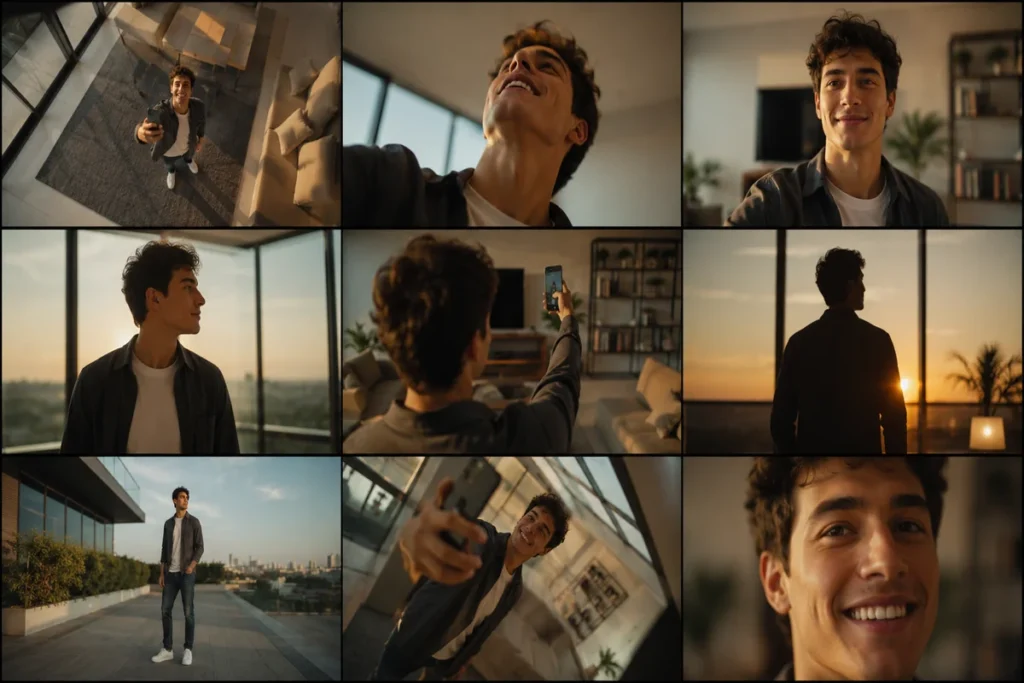
Using these prompts is simple once you understand the pattern. Upload a clear photo of yourself, then add one command tag to your text prompt, describing the setting you want.
For example: “A person standing in a modern kitchen, /LOWANGLE, natural lighting, casual outfit.” Flow reads that tag and applies the angle described above.
You can combine two commands for a more specific result, such as pairing /PORTRAIT with /CINEMATIC for a magazine-style headshot. Do not stack more than two or three, since Flow can start ignoring conflicting instructions.
A quick note on faces: since you are recreating these shots with your own photo instead of a public figure, results tend to be more consistent and there is no risk of the output resembling someone else’s likeness.
Common Mistakes When Prompting Camera Angles in Google Flow
- ❌ Typing the command without describing the scene around it, which produces a floating, generic subject
- ❌ Combining conflicting angles, like
/TOPDOWNand/EYELEVELin the same prompt - ❌ Using a blurry or low-resolution source photo, which limits how sharp the final angle looks
- ✅ Pairing one angle command with one mood command for the cleanest results
- ✅ Testing the same prompt twice, since Flow varies slightly between generations
FAQ
Do I need a paid Google Flow plan to use these commands?
No special plan is required specifically for camera commands. They work as plain text tags inside any prompt, though your available generations still depend on which Flow tier you are subscribed to.
Can I use more than one camera command in the same prompt?
Yes, combining two works well, such as an angle command with a mood command. Adding three or more often confuses the output, so keep it simple for the most reliable results.
Do these commands work for video generation too?
Yes. Movement commands like /ORBIT, /PUSHIN, and /DRONEREVEAL are actually built for motion and tend to look better in video generations than in single static images.
Will using my own face instead of a celebrity change the output quality?
No, the commands control the camera behavior, not the subject. A clear, well-lit source photo of yourself works just as well as any other subject.
Where did this list of commands originally come from?
The format was popularized through social media posts using a well known athlete as the visual example. The commands themselves are generic Flow prompt tags that work with any subject.
Final Take
Forty commands sounds like a lot, but you really only need five or six in regular rotation to make your Google Flow content look sharper than 90 percent of what is on your feed right now. Start with /LOWANGLE, /PORTRAIT, and /CINEMATIC, then branch out from there.
Save this guide, pick your favorite command, and generate your next post today.
- Google Flow Camera Commands: 40 Prompts to Steal Right Now
- Moltbook AI Agent Network: Inside the Social Platform Built for Bots

- macOS vs Windows Security: Which One Actually Keeps You Safer in 2026?

- Security+ Passing Score Explained: How Many Questions Can You Miss?

- Musk vs Altman OpenAI 2026: The Leaked Emails War